Security Plugins
The following is a list of the plugins we use to protect against attacks on our website:
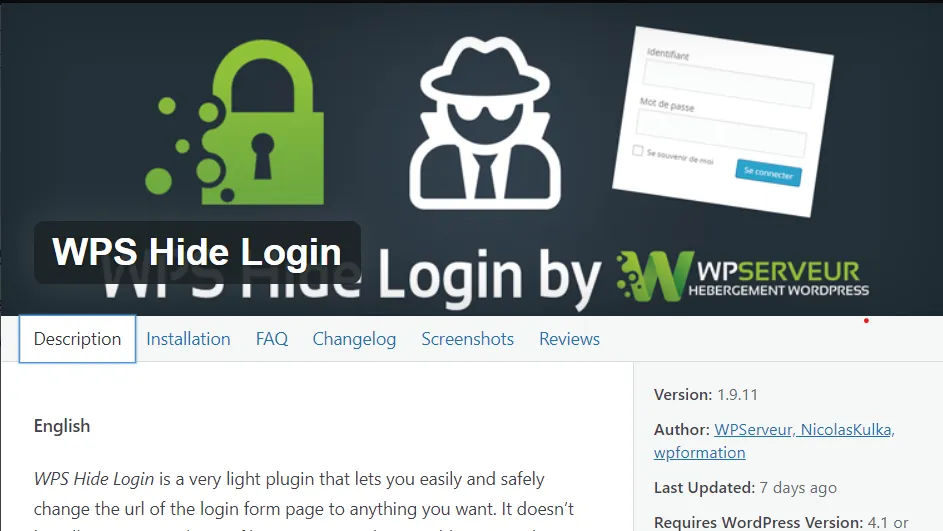
WPS Hide Login
The WPS Hide Login plugin allows you to quickly and securely customize your login page URL in WordPress without altering core files or adding rewrite rules. It intercepts page requests, making the wp-admin directory and wp-login.php page inaccessible.
Installation and setup of the plugin:
- Go to WPS Hide Login and install the plugin.
- Go to plugin setting and change the login-url. Aslo change the Redirection Url to 404 page.

301 Redirect
301 Redirects assists in creating and managing redirects (301, 302, 307) to enhance SEO and improve visitor experience. It’s ideal for new sites, fixing links after content reorganization, and preventing 404 errors by redirecting expired content. Identify problematic links using the 404 error log.
Installation and setup of the plugin:
- Go to 301 Redirect and install the plugin.
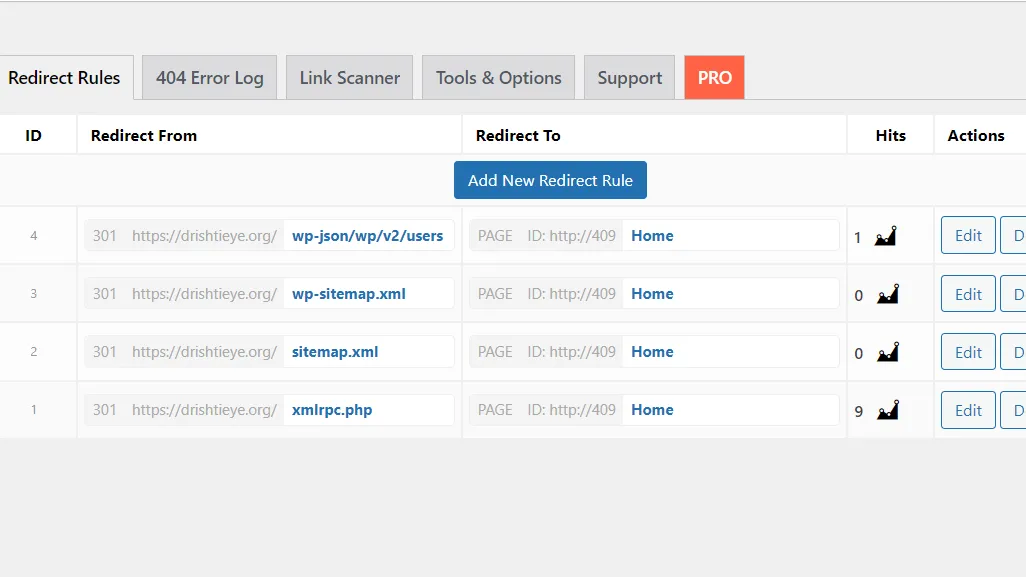
- Manage the redirect rules for wp-json/wp/v2/users, wp-sitemap.xml, sitemap.xml, xmlrpc.php to home page
Wordfence
Wordfence Security plugin is an all-in-one WordPress security solution. It comes with an endpoint firewall, malware scanner, strong login security, live traffic views, and more. The Threat Defense Feed ensures it stays updated with the latest security measures, including firewall rules, malware signatures, and malicious IP addresses. With added features like 2FA, Wordfence stands as the most comprehensive security solution for WordPress.

Installation and setup of the plugin:
- Go to wordfence and install the plugin.
- During installation, you might be prompted to enter the license number. Simply use your office email for a free registration.
Disable Everything
With the Disable Everything All-in-One plugin you can simply disable any feature that you do not use with one click.

Installation and setup of the plugin:
- Go to Add Plugins page and search for Disable Everything.
- Install the plugin.
- Activate the plugin.
- Go to the Settings > Disable Everything
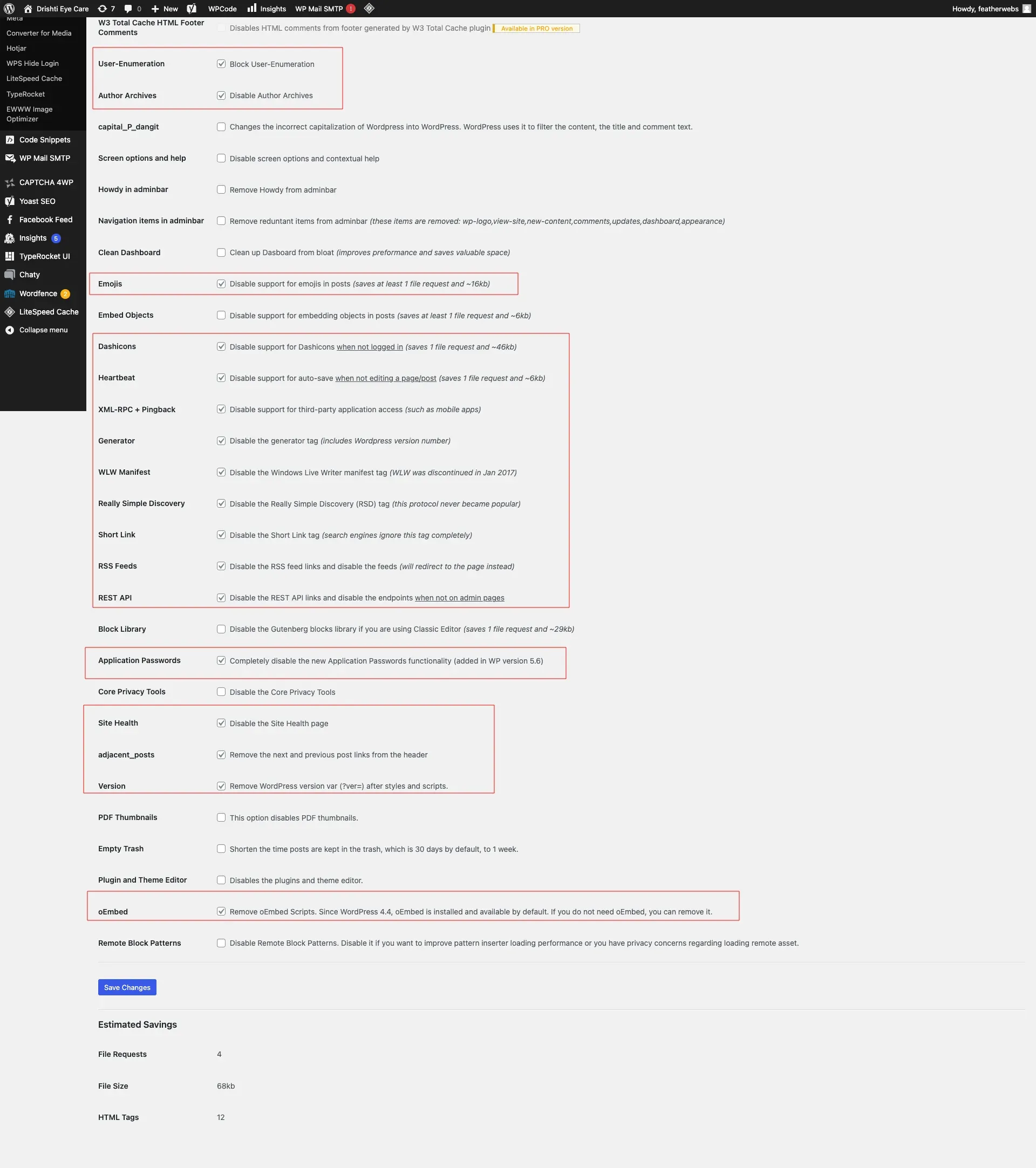
- Below is the recommended configuration: